

Live Video and Videowalls
Live video shows connected cameras in grids, one at a time and on videowalls. A grid is sized to the screen, and a camera opens alone with pan, tilt and zoom. A videowall runs in a browser on a guard desk or control room display.
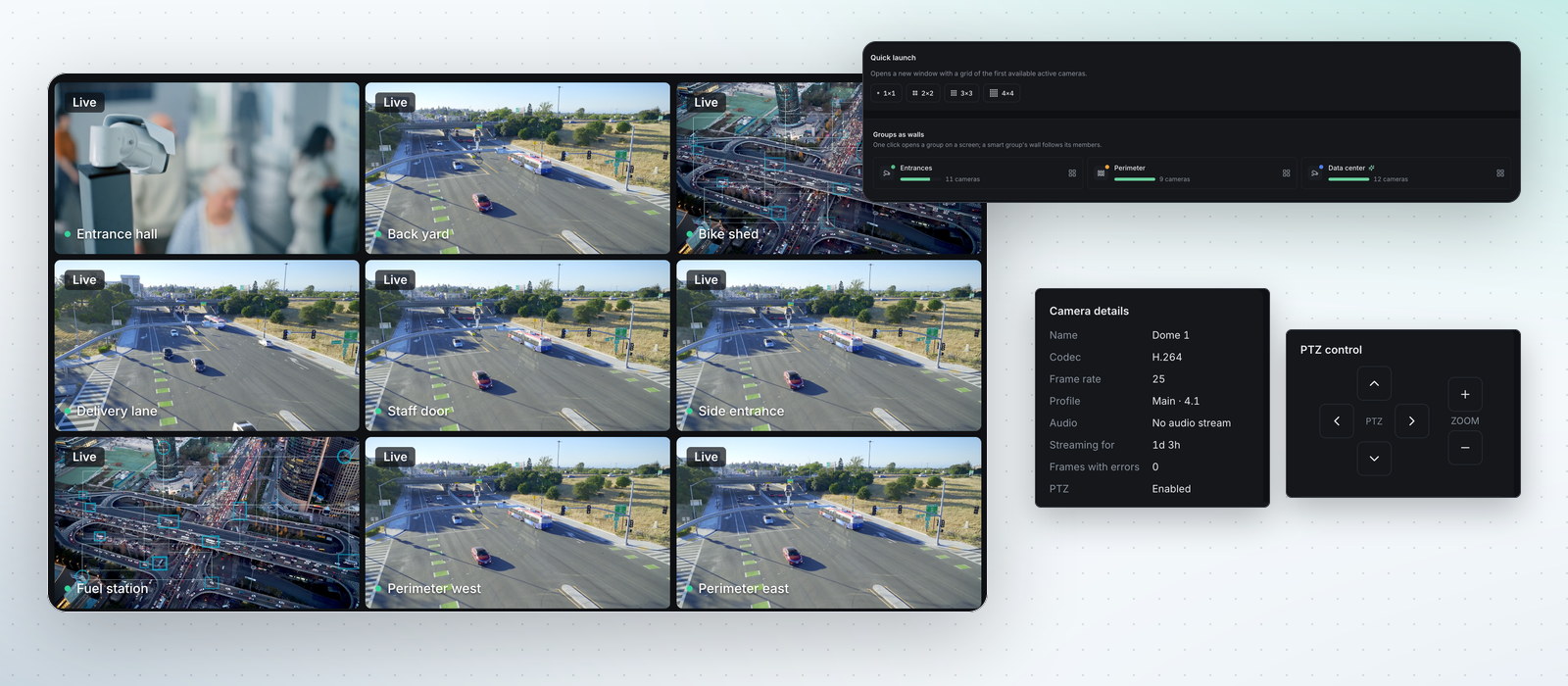
Camera grids
One, four, nine or sixteen tiles, each with the camera name, a recording mark and the reason a source is down.
Pan, tilt and zoom
Fine steps on tap, presets saved and recalled by name, and controls that appear only on cameras that support them.
Videowalls
Saved walls open on a dedicated display, recover from stream failures on their own and pick up edits while on screen.
A wall that runs on its own
Saved once, opened in a browser on the control room display.
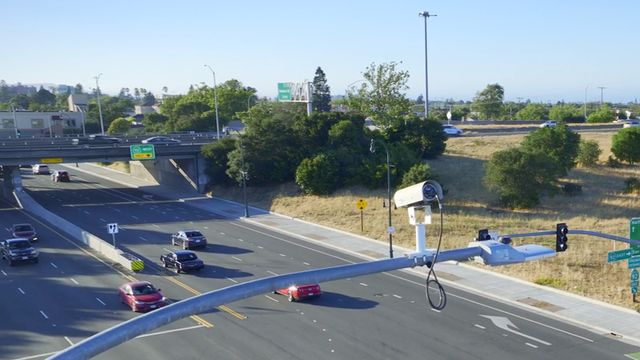 Junction east
 Ring road
 Truck yard
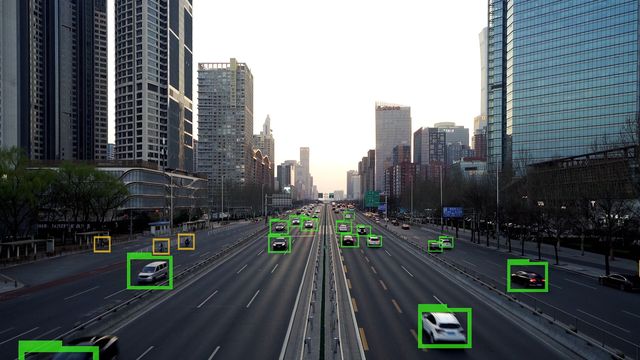 Main road
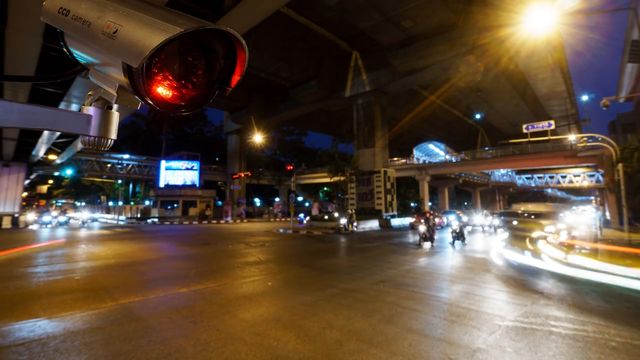 Underpass
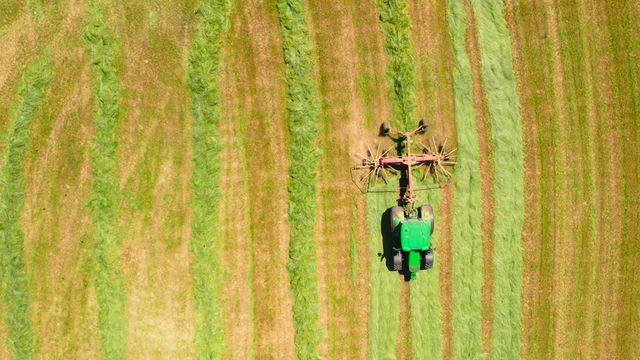 North field
 Hall A
 Lobby
Name and live mark per cell
Each tile carries the camera name and a live mark. The controls and the cursor stay hidden.
Recovers by itself
A camera that drops shows an offline placeholder that retries on its own, and the wall picks up edits while on screen.
A clock for the control room
A wall clock in the operator's chosen format, and counting lines can show their live figures over the picture.
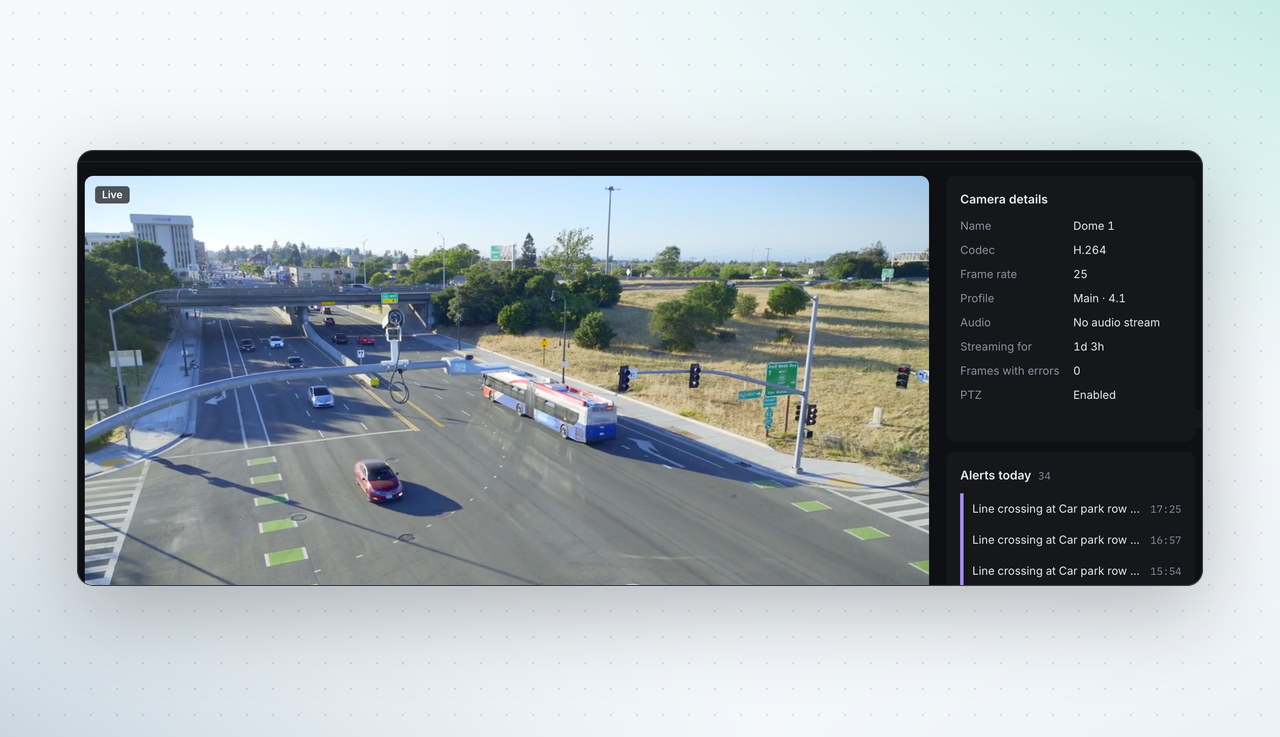
Single camera view
A camera opens to a full view with live detection drawn over the picture, camera details, a screenshot button and native fullscreen. Cameras with pan, tilt and zoom get a control pad, presets and a cap on continuous movement, so movement stops on its own.
- A live overlay of what the engine sees, on the same stream the operator watches
- Low latency delivery with automatic transport fallback
Videowall editor
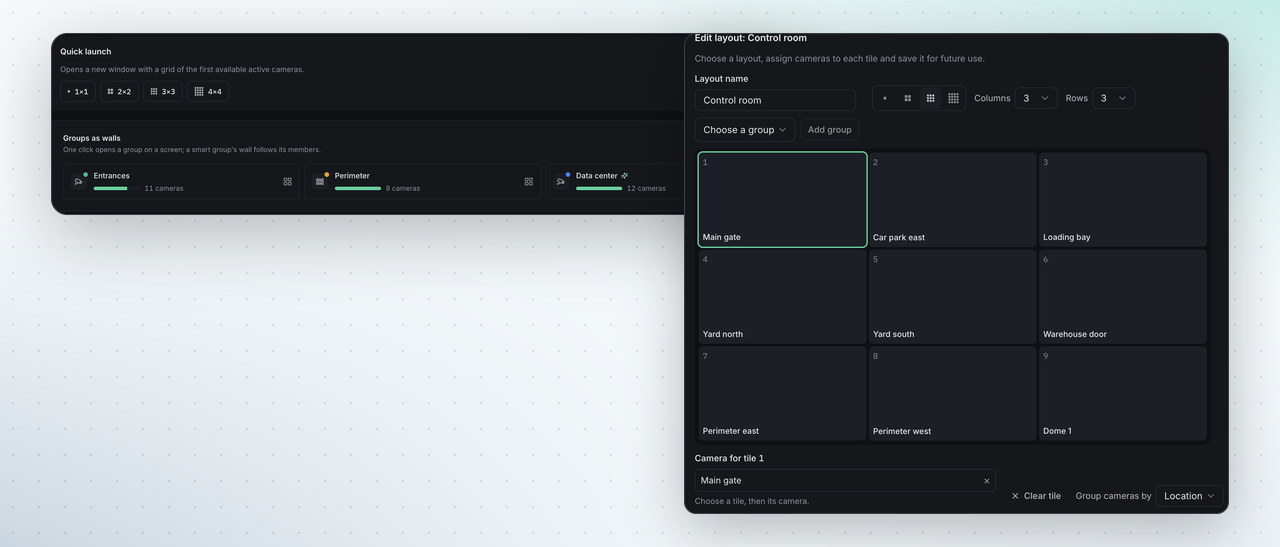
A wall is a layout, a camera in each cell and a name. It opens on the second monitor of a guard desk or on the main display of a control room. A saved wall can be edited while on screen, and the display picks up the change by itself.
- Quick launch from the first active cameras, with no saved layout
- Walls shared with the team or kept personal
- Tile arrangement saved per layout
Unattended display mode
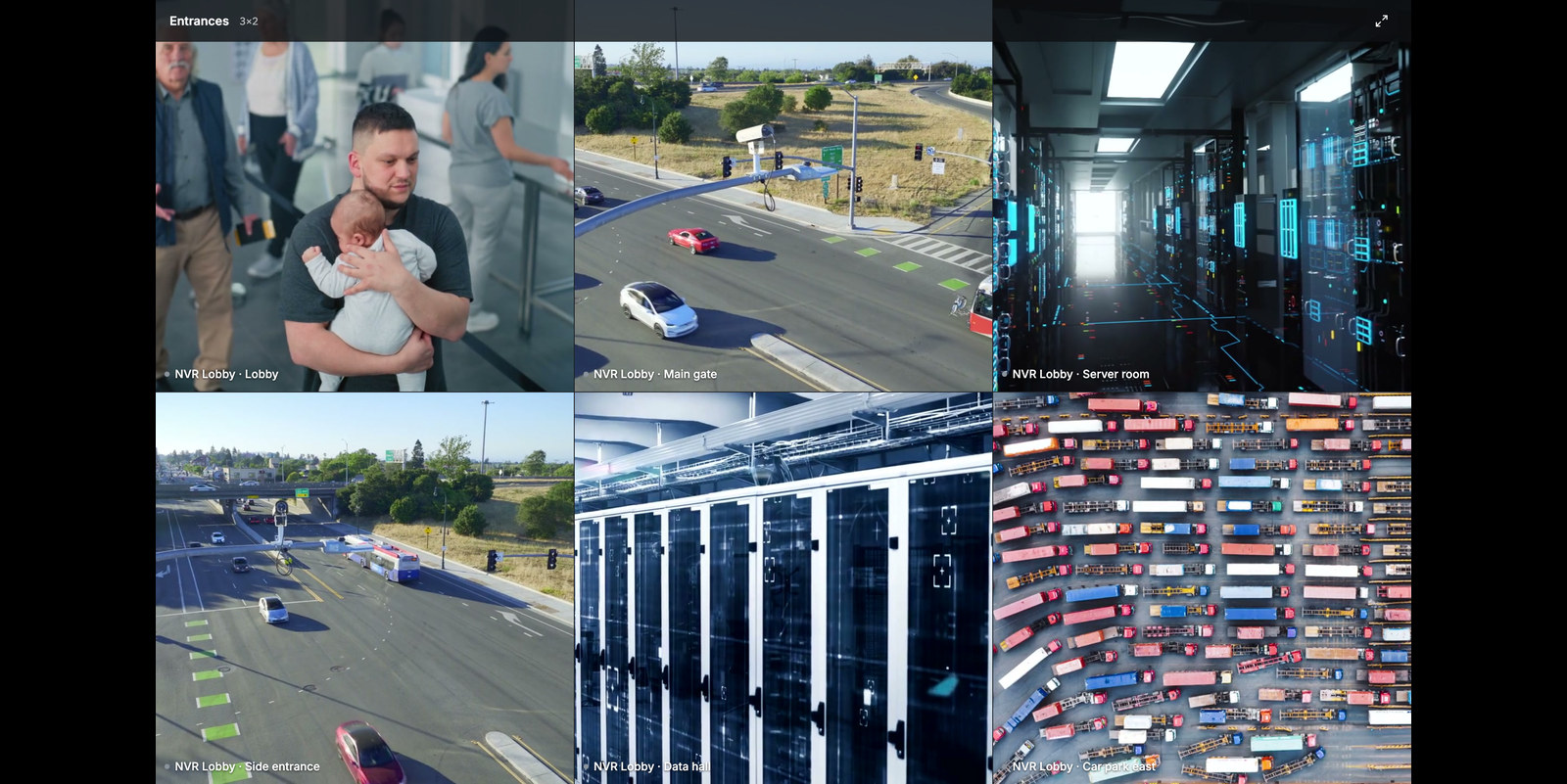
The wall view hides its controls and cursor, shows a name chip and a live mark per cell, places an offline placeholder that retries on its own, and keeps a wall clock in the operator's chosen format. Counting lines can show their live figures over the picture.
Camera groups
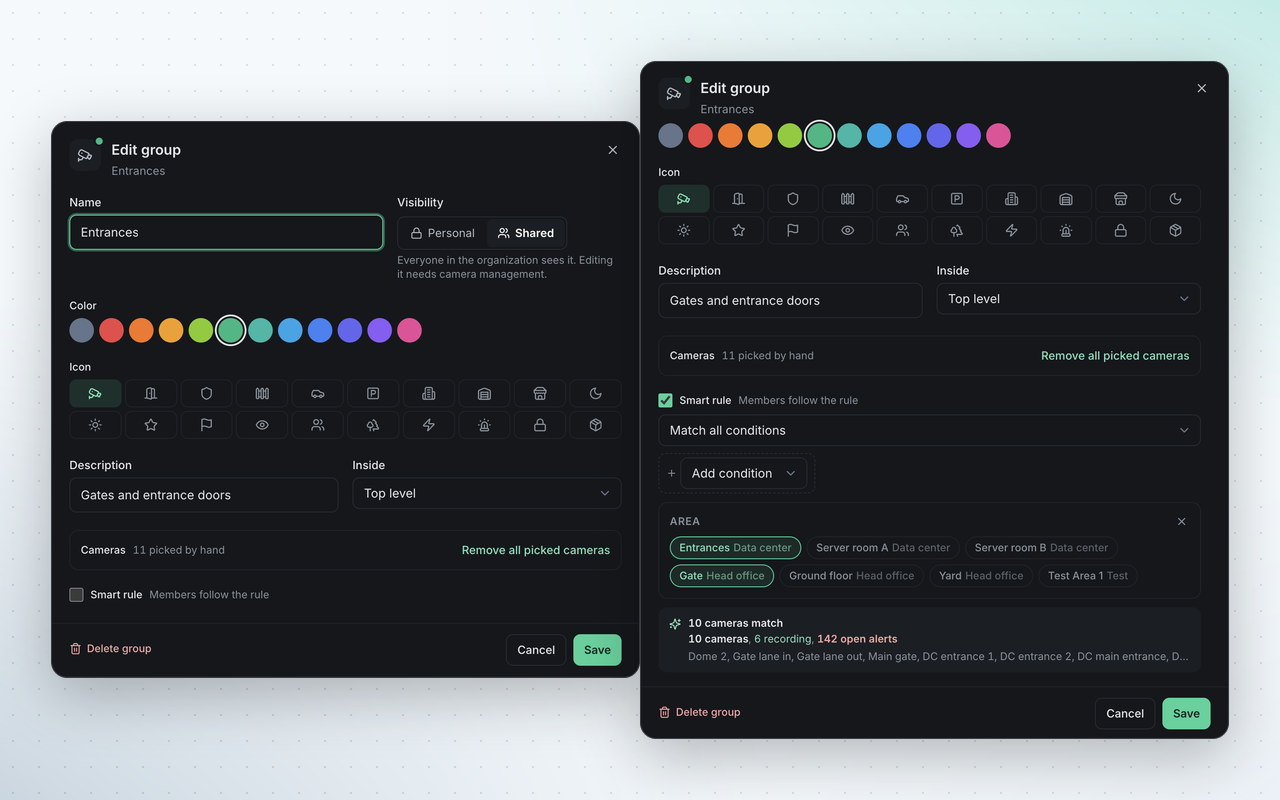
A group is a named set of cameras, such as Entrances, Perimeter or Night shift. It is picked by hand or follows a rule: a site, an area, a floor plan, a recorder, a name pattern, a tag, a region drawn on the map, the camera state or whether AI is on. A rule based group updates itself as cameras are added or change state.
Groups appear on the live view, the videowall, the camera list, the alert filters, the map and the dashboard. A group opens as a videowall in one click, and the wall of a rule based group follows its members.
- Shared with the organization or kept personal, with groups inside groups
- Suggestions per site, per recorder, and for cameras offline or not recording
- A health line per group: online, offline, not recording and open alerts
Dashboard and everyday tools
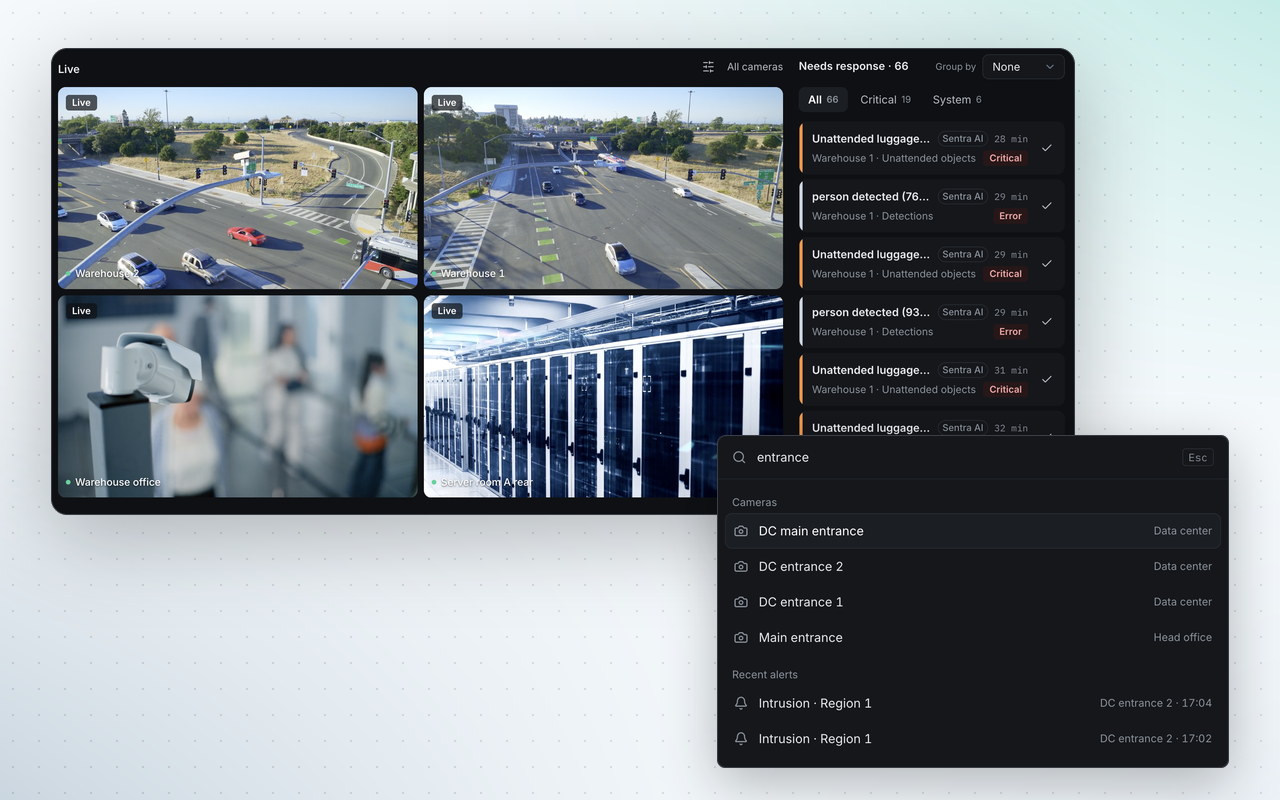
The dashboard opens on three tabs. System health shows cameras online, recording allowance, server disk and alerts awaiting response, with every camera as one square. Operations shows live tiles, the queue of alerts that need a response, the last 24 hours and the cameras with the most alerts. Insights shows entries, occupancy, plate reads and sensor readings. Widgets, including a live map, are arranged per user.
- A setup checklist on each camera: location, recording, AI, field of view
- A command palette (Cmd K or Ctrl K) that finds any camera, page or action by name
- Dark and light themes, and English and Romanian
See it on your own cameras
A demo can run on your cameras or on a Sentra demo site, self hosted or hosted by Sentra. Tell us which events and figures you need, and we prepare it.